Installation
The TurboDyne Build Accelerator has a single installer designed to install its components on each machine that will participate within the TurboDyne build Cluster.
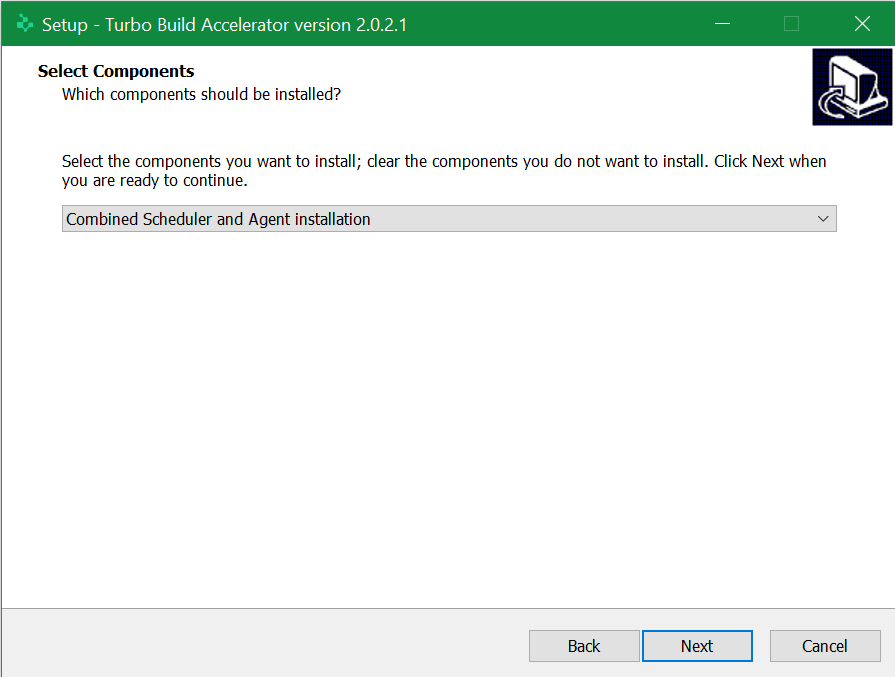
The Installer provides a choice to install on a machine :
- The Scheduler (just one instance within the Cluster)
- The Agent
- Both Agent and Scheduler (not recommended except for simple testing)
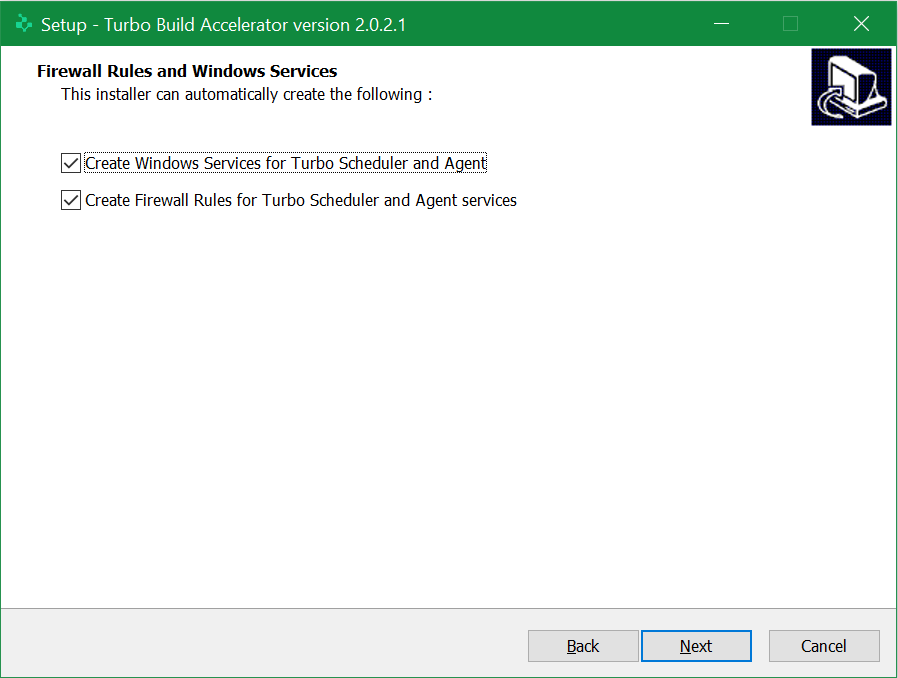
The Installer provides the choice to create the necessary Windows Service(s) and Windows Firewall rules. Note: the Firewall rules (inbound and outbound) are restricted to 'Local Subnet'.
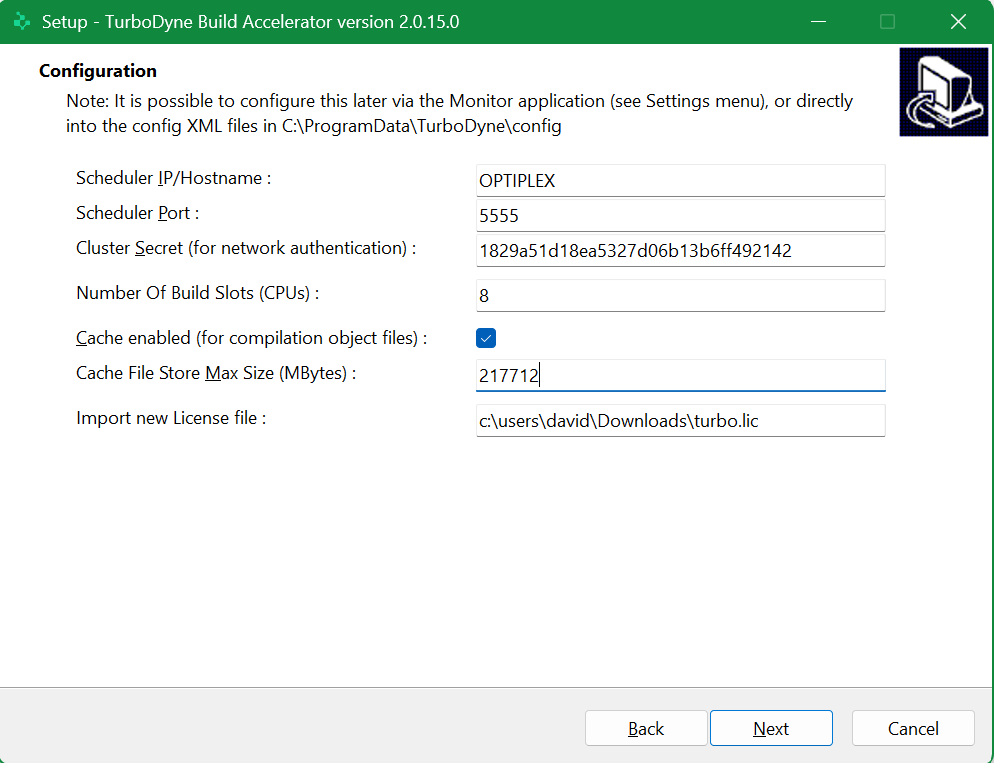
The next Installer page allows the configuration of TurboDyne installation.
It is recommended to let the Installer create the Windows Services and Firewall Rules for a no-hassle installation. The option is intended for advanced installations.
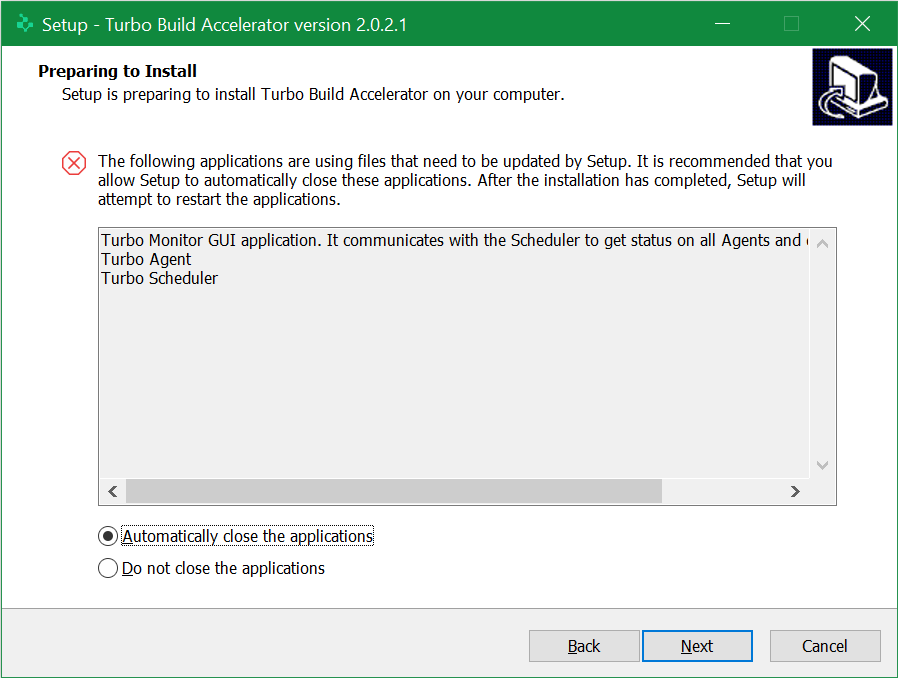
The Installer will automatically check for any running instances of the TurboDyne Build Accelerator processes and confirm for it to exit them.
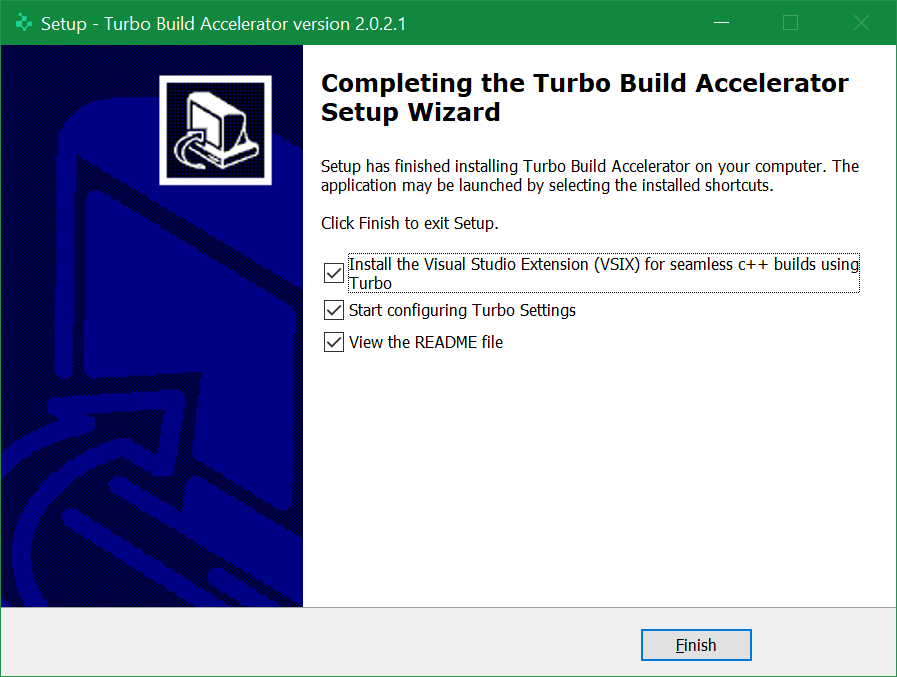
At the final stage of the Installer, you have the option to :
- launch the installer for the TurboDyne Visual Studio Integration Extension for seamless builds with TurboDyne from Microsoft Visual Studio.
- launch the TurboDyne Monitor to enter settings
- view the README.txt
More details on the installer for the TurboDyne Visual Studio Integration Extension is available here.
The Installer will install by default to :
- the
Program Files (x86)folder (e.g.C:\Program Files (x86)\TurboDyne). - the
ProgramDatafolder (e.g.C:\ProgramData\TurboDyne).
Installation within your organisation has minimal impact with no need to provision additional resources such as an external database.
Security
The TurboDyne Build Accelerator executables and the Installer executable (e.g. turbo-2.0.14.0-win32.exe) are digitally signed using a DigiCert OV Certificate.
The certificate is securely located on a DigiCert-provided hardware token (SafeNet 5110+ FIPS) adhering to security certification 'FIPS 140-2'.
This provides confidence that what you install has not been tampered with by a 3rd-party.
Automated 'Quiet' Mode
The Installer can be used in 'quiet' mode for easy automated deployment (e.g. by Terraform or Puppet).
Example automation :
rem Using optional environment variables to pass information to the Installer
set TURBO_CONFIG_SCHEDULER_IP_ADDRESS=MACHINE001
set TURBO_CONFIG_SCHEDULER_IP_PORT=5555
set TURBO_CONFIG_CLUSTER_SECRET_KEY=823bqd8hq2ekjb2es
set TURBO_CONFIG_CACHE_ENABLED=true
set TURBO_CONFIG_CACHE_MAX_FILES_DISK_SPACE_MB=100000
set TURBO_CONFIG_AGENT_NUMBER_OF_BUILD_SLOTS=7
set TURBO_LICENSE_FILENAMEPATH=C:\Users\Administrator\turbo.lic
set TURBO_CONFIG_LOGGING_LEVEL=debug

turbo-2.0.14.0-win32.exe /log=turbo-installer.log /silent /TYPE=agent
Note that not all the above environment variables are required. If not defined they will be given sensible defaults. See the configuration XML files (in C:\ProgramData\TurboDyne\config) for more information.
/TYPE can be :
agentschedulerboth
The environment variable TURBO_LICENSE_FILENAMEPATH contains a path to the license file. This file will be copied by the Installer into the destination bin folder (e.g. C:\Program Files (x86)\TurboDyne\bin)
The installer is created using InnoSetup. Information on its command line parameters (e.g. /log, /TYPE and /silent) can be useful for automation.