The Visual Studio Integration Extension
TurboDyne Build Accelerator has a Visual Studio Extension (VSIX) that helps you configure a solution to utilise TurboDyne for the building.
In Visual Studio IDE see menu Tools > Use TurboDyne Build Accelerator for this Solution. This enables you to override (for this Solution) the default behaviour of whether to use TurboDyne for your build.
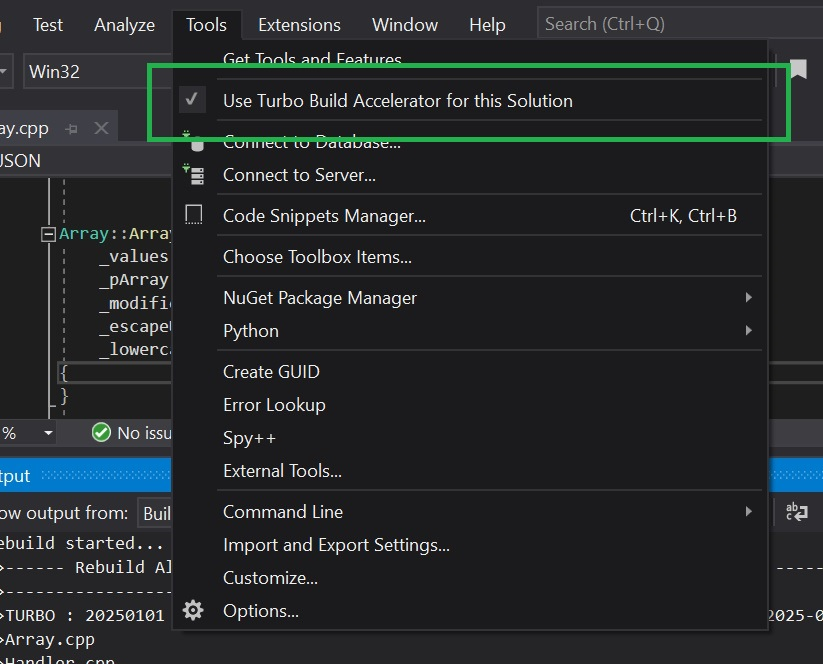
The VS Extension for Turbo creates/modifies the Visual Studio Project User (.vcxproj.user) files.
It stores the Tools > Options settings within the Solution .suo file.
It will also make a small modification to the .vcxproj file to change the Program Database compilation setting from \Zi or \ZI to \Z7. The changes in the .vcxproj will look like :
<DebugInformationFormat>ProgramDatabase</DebugInformationFormat>
to
<DebugInformationFormat>OldStyle</DebugInformationFormat>
This is necessary to ensure that the debug info is bundled within the compiler-generated object files, to ease the distribution of them throughout the TurboDyne Build Cluster. Additionally, as a side-effect, it ensures that incremental compilation functions correctly.
TurboDyne builds can then be achieved by requesting a build (as usual) within Visual Studio or by using the msbuild.exe command-line tool.
This VS extension currently works with VS 2019, VS 2022, VS 2026.
For integration with msbuild.exe see The Visual Studio Integration for non-GUI for details.
Configuration
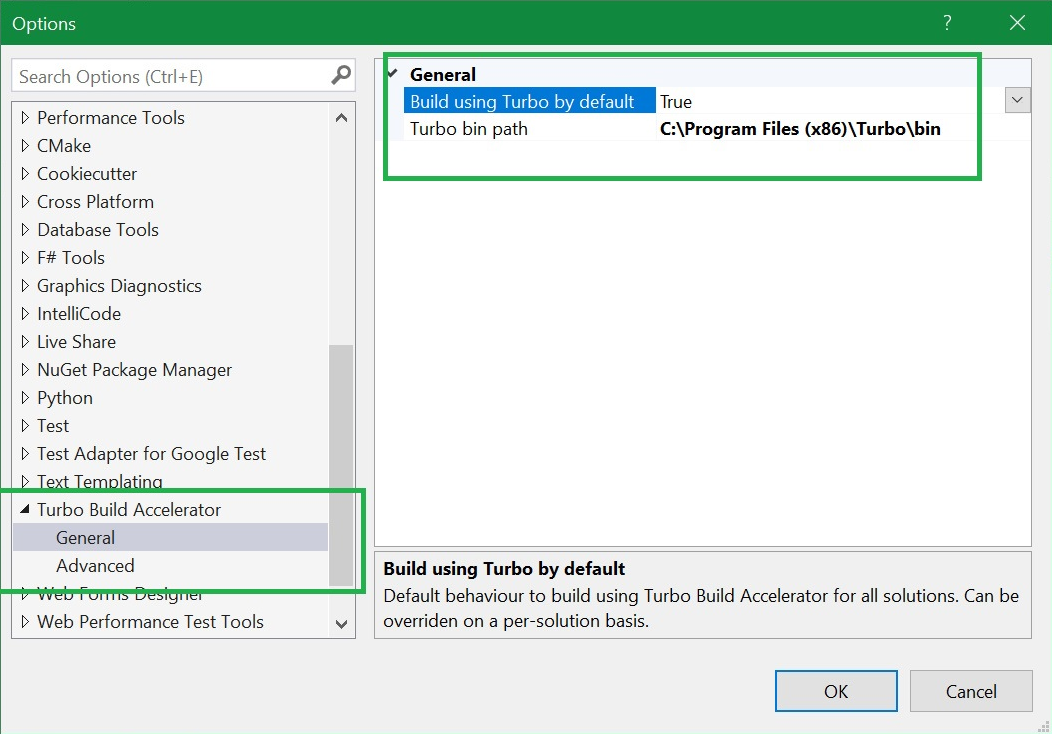
In Visual Studio IDE see menu Tools > Options > TurboDyne Build Accelerator for the following configuration options :
1) Choose if to build using TurboDyne Build Accelerator by default (true/false)
2) The path to TurboDyne Build Accelerator binaries
3) [Advanced] Whether to use the debug builds of TurboDyne Build Accelerator
Installation
The Installer for TurboDyne Build Accelerator contains the VSIX installer file, and gives the option to launch and install it at the 'Finish' page of the installer.
The VSIX installer detects which version of Microsoft Visual Studio are installed and gives the option to choose which ones to target with installing the TurboDyne Extension.
Note that installing the TurboDyne Extension requires the relevant Visual Studio applications to be closed. This is a restriction imposed by Microsoft.
You can confirm the installed Visual Studio Extensions can be viewed using its menu Extensions > Manage Extensions.
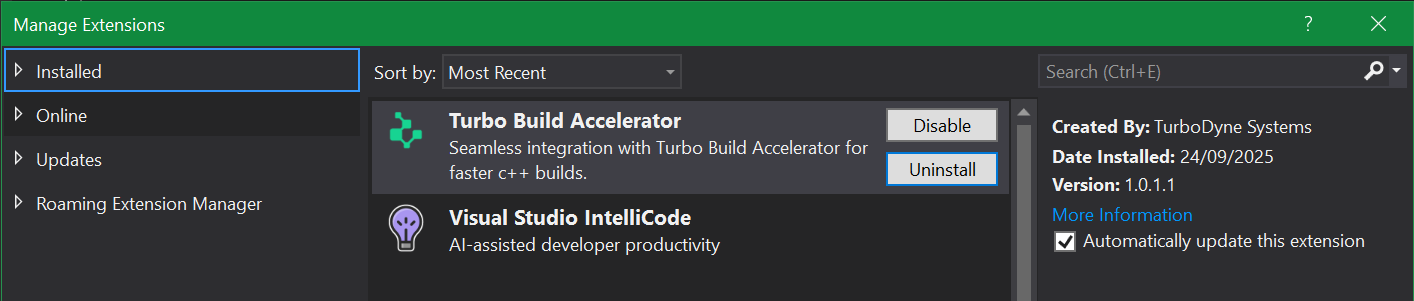
Note: the version number of the extension (1.0.1.1), in the above screenshot, differs from the version number of TurboDyne Build Accelerator. This is so the extension is only updated if strictly necessary.
See Installation for more details about the installation process.